 Blog
Blog
 Jun 16, 2026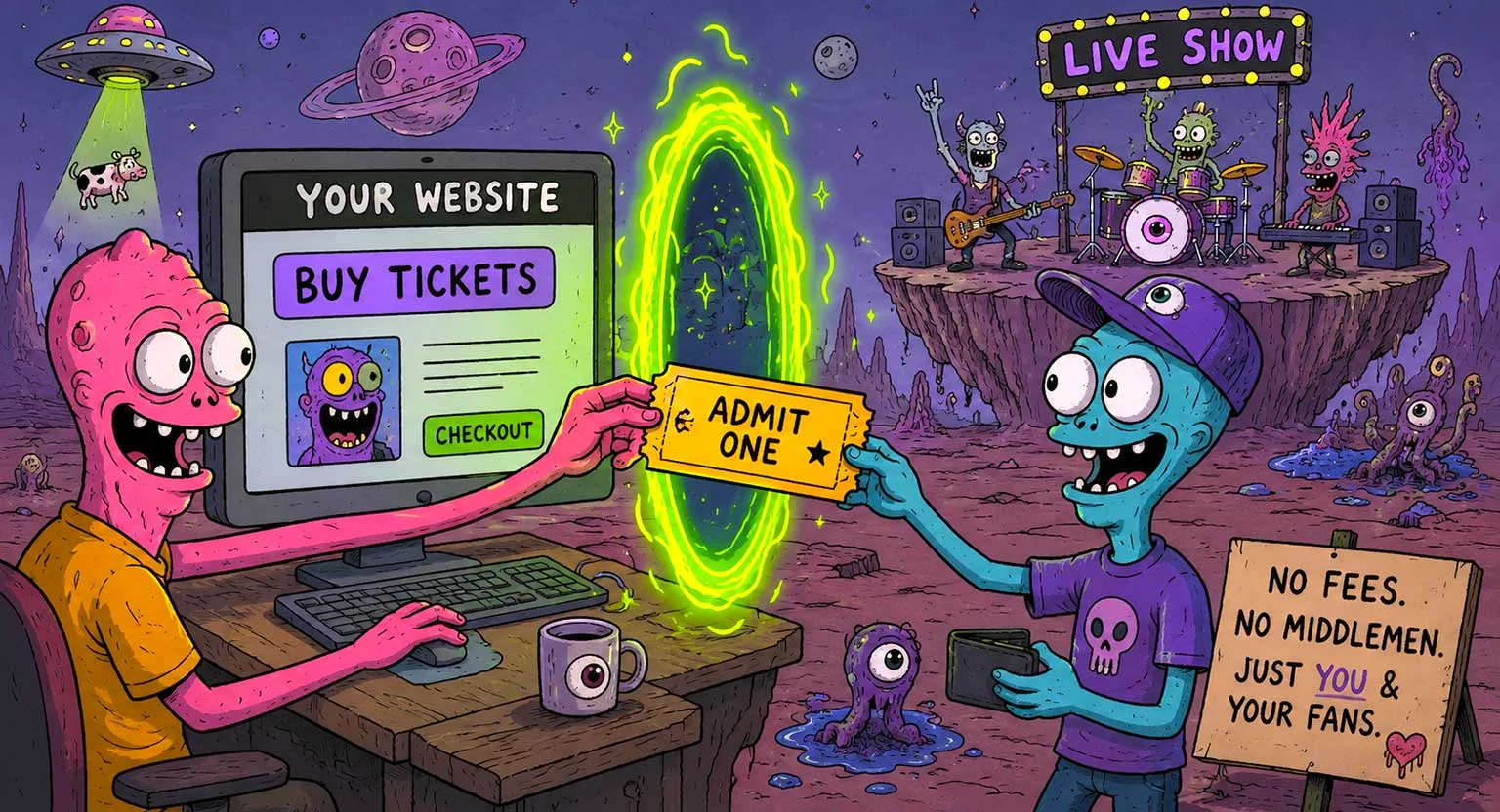
You’re already promoting your event on your website, why not sell tickets there as well? Selling tickets on your site, directly to attendees, has a number of positive benefits. It’s easier on the consumer and, because consumers don’t have to go off-site to make their purchase, the process can improve conversion rates as well.
But of course, the question is what do you do if you don’t have a developer on staff to build a ticket selling platform for your site. The easiest option is usually to use a ticketing platform that gives you an embeddable ticket widget. That way, you can add ticket sales to your website without building a checkout system from scratch.
Website Ticketing Widget
One option is to use a ticketing platform that provides an embeddable ticket widget. In this example we’ll use TicketsCandy, which allows event organizers to create events, process payments, distribute tickets, and manage attendees while displaying ticket sales directly on their own website.
The TicketsCandy ticketing widget can be easily embedded on your site’s event page. While customers can purchase tickets directly on your site, all of the work that goes into the checkout process, payment collection, ticket distribution, and order management will be handled by TicketsCandy. This lets you keep the ticket-buying experience on your website while TicketsCandy handles the technical side in the background.
Let’s see how easy it is to achieve those benefits.
Step 1 :: Create an Event Page on Your Site
One of the great things about TicketsCandy is that its ticket selling platform acts as an extension of your site. This creates a seamless interaction for customers and provides them with purchasing peace of mind.
TicketsCandy’s flexible architecture means it will work with an out-of-the-box site built on one of the popular platforms like WordPress or Wix as well as with more custom developed pages.
Step 2 :: Create a Free TicketsCandy Account
If you’re ready to start selling, or just curious about the process, set up your free TicketsCandy account.
After filling out a few fields, you’ll be ready to start setting up ticket sales for your first event. When selling tickets, TicketsCandy charges an industry-low 0.9% fee. By default, these fees are passed on to the ticket buyer, so organizers can keep the full ticket price. You can also choose to absorb the fees if preferred.
Step 3 :: Set Up Your Event
Create Ticketed Event
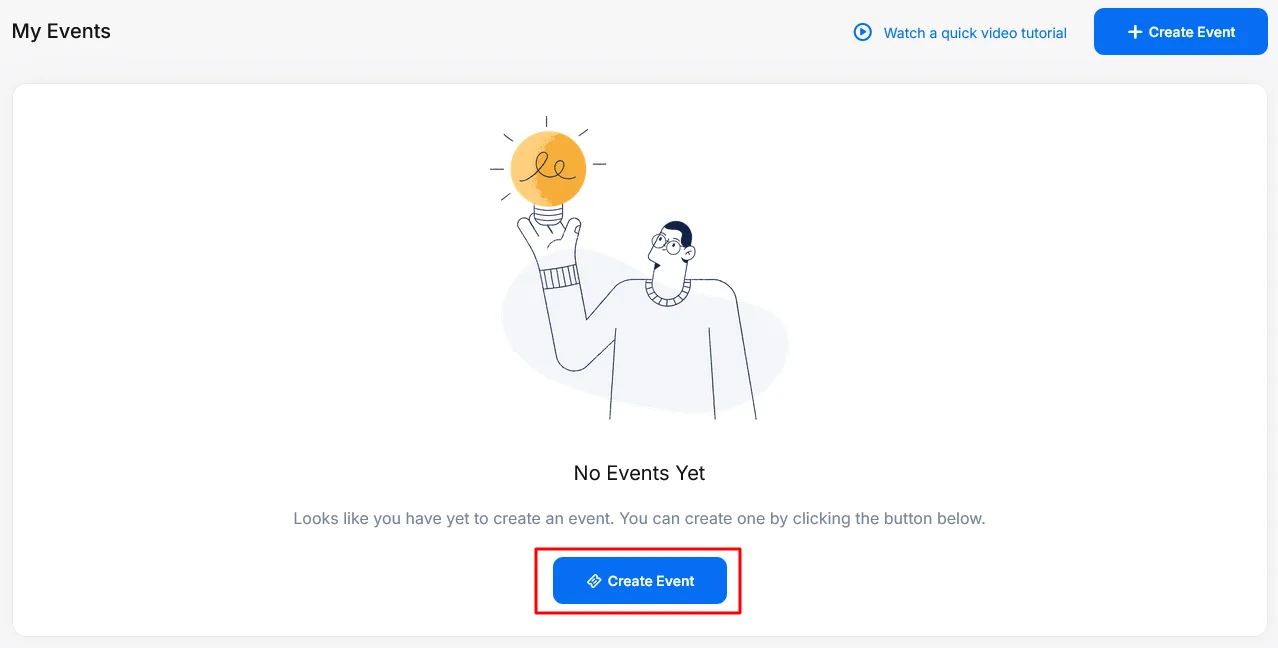
Now it’s time to set up your event on the TicketsCandy platform.
After you login you’ll have access to the Organizer Dashboard. There you’ll find a button to “Create Event.” After selecting it you’ll have the opportunity to create the framework for your event. You’ll set the event’s:
- Name
- Type
- Date(s) and Time
- Location
- Organization details
Create Tickets
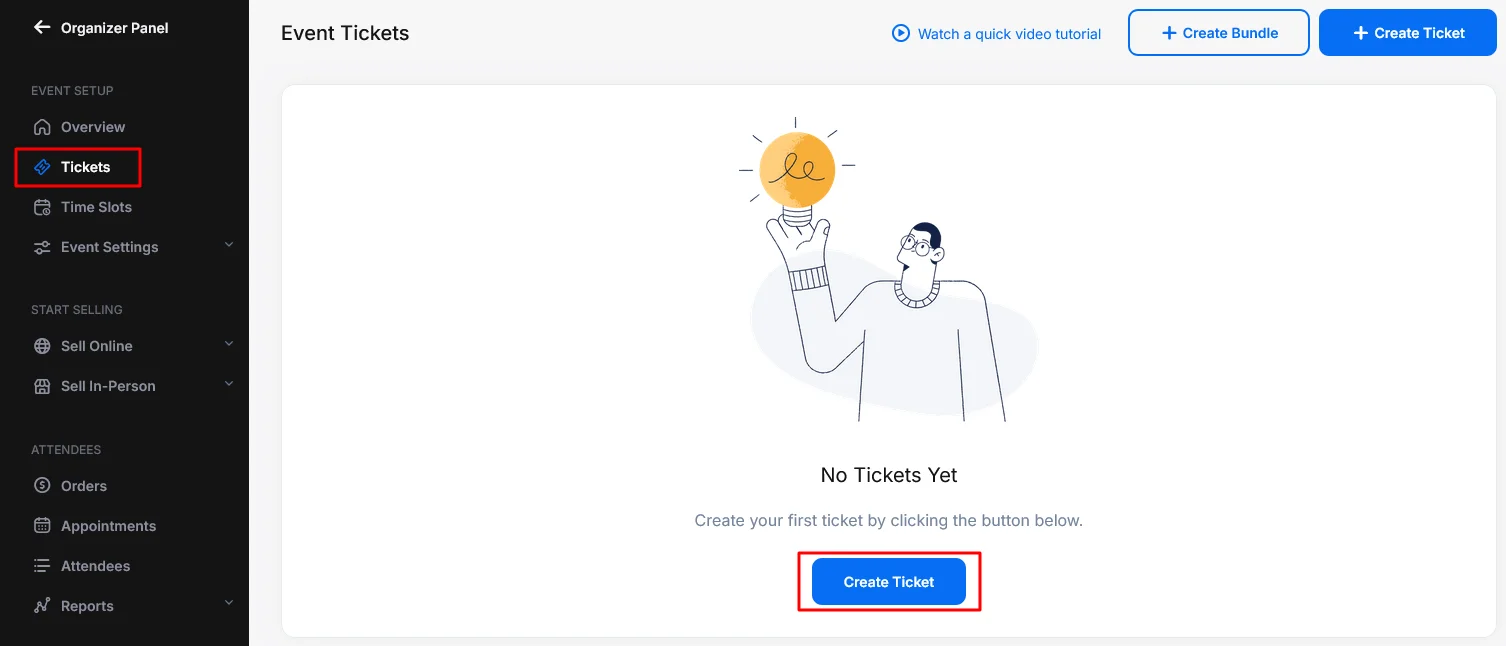
Once your event is created, it will appear in your Organizer Dashboard. From there, select Manage Event on the event tile to open the event management panel. This is where you’ll control the settings for this specific event, including tickets, time slots, payment options, online sales, attendee management, and additional tools.
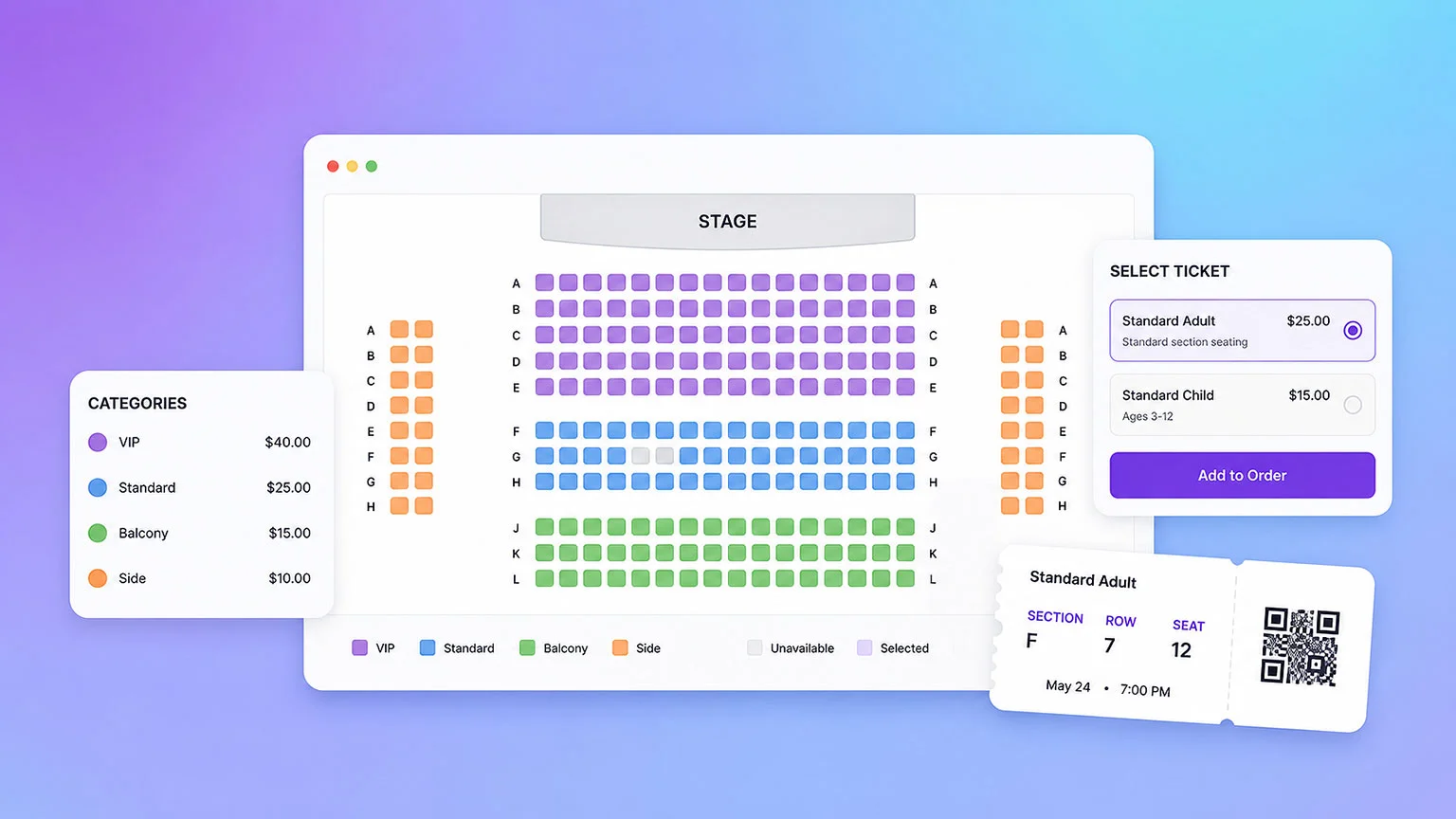
The most important step is creating the tickets you want to sell. To do this, select Tickets from the event navigation menu. From there, you can create different ticket types based on how your event is set up.
These can include:
- Regular tickets: These are standard tickets for general admission, single-day events, recurring events, or passes.
- Add-on items: These are extra items or services that customers can purchase along with their tickets, such as merchandise, parking, food vouchers, or upgrades. Add-ons do not affect time slot availability or event capacity.
- Donations: These allow customers to contribute a custom amount without impacting ticket availability or time slot capacity.
- Bundles: These allow you to combine multiple tickets into one bundle and sell them together, often at a lower price. This can be useful for family packs, group offers, or special promotions.
When creating a ticket, you’ll be able to enter the ticket name, description, price, quantity, and availability. You can also adjust additional settings depending on the type of ticket you’re creating. Once everything is configured, click Save and the ticket will be ready to sell for your event.
Additional Ticketing Apps
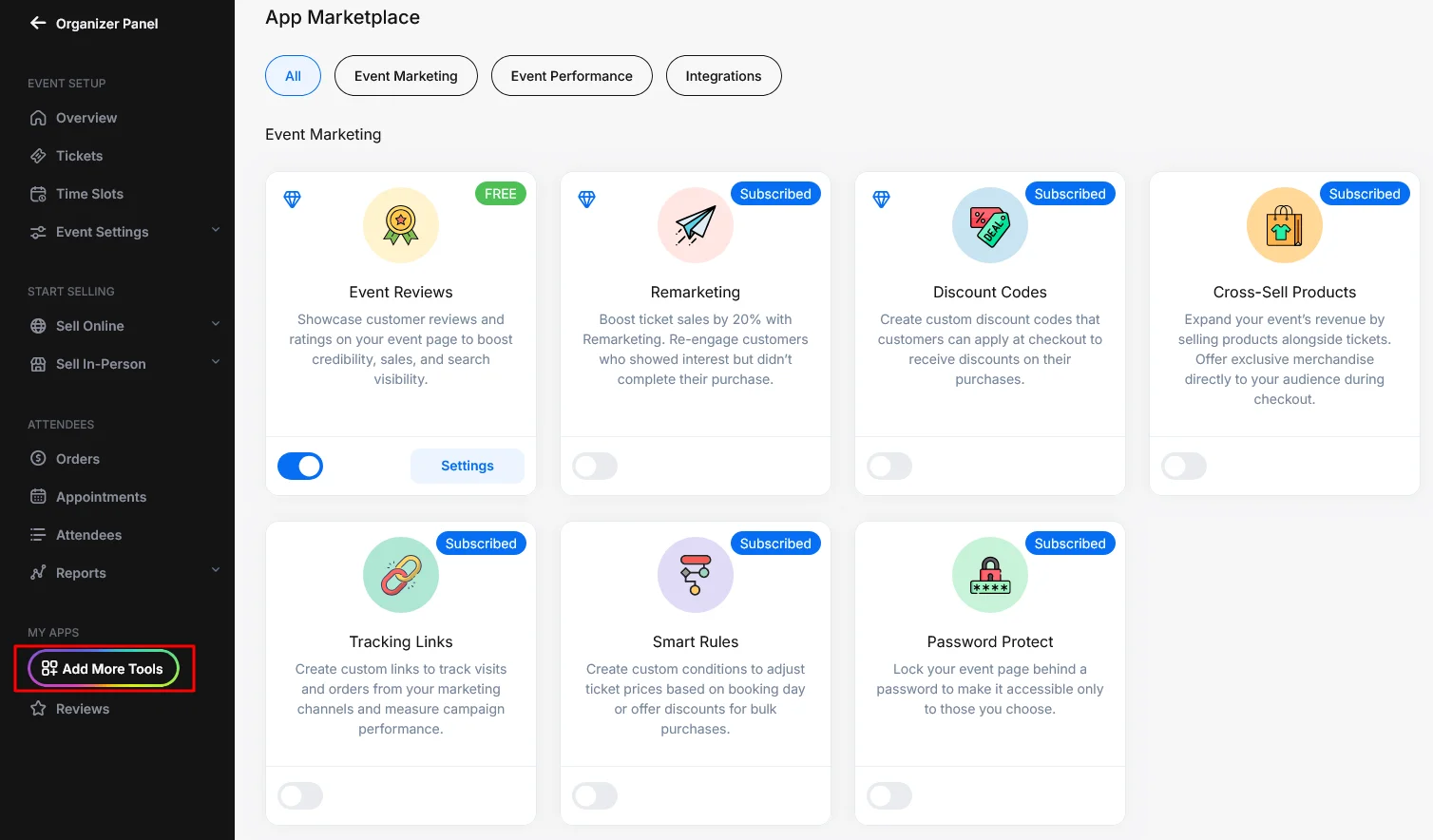
If you need additional functionality beyond the basic event setup, select Add More Tools from the navigation menu. This will take you to the app marketplace, where you can enable extra tools for your event. These apps can be turned on or off at any time, which helps keep your event dashboard organized and focused only on the features you need.
Some of the available tools include:
- Custom Questions
- Discount Codes
- Ticket Scanner App
- Remarketing Tools
- Smart Rules
- Zapier Integrations
- Google Analytics and other marketing tools
After enabling the tools you need, you can configure each one based on how you want your event to work.
Hosted Event Page
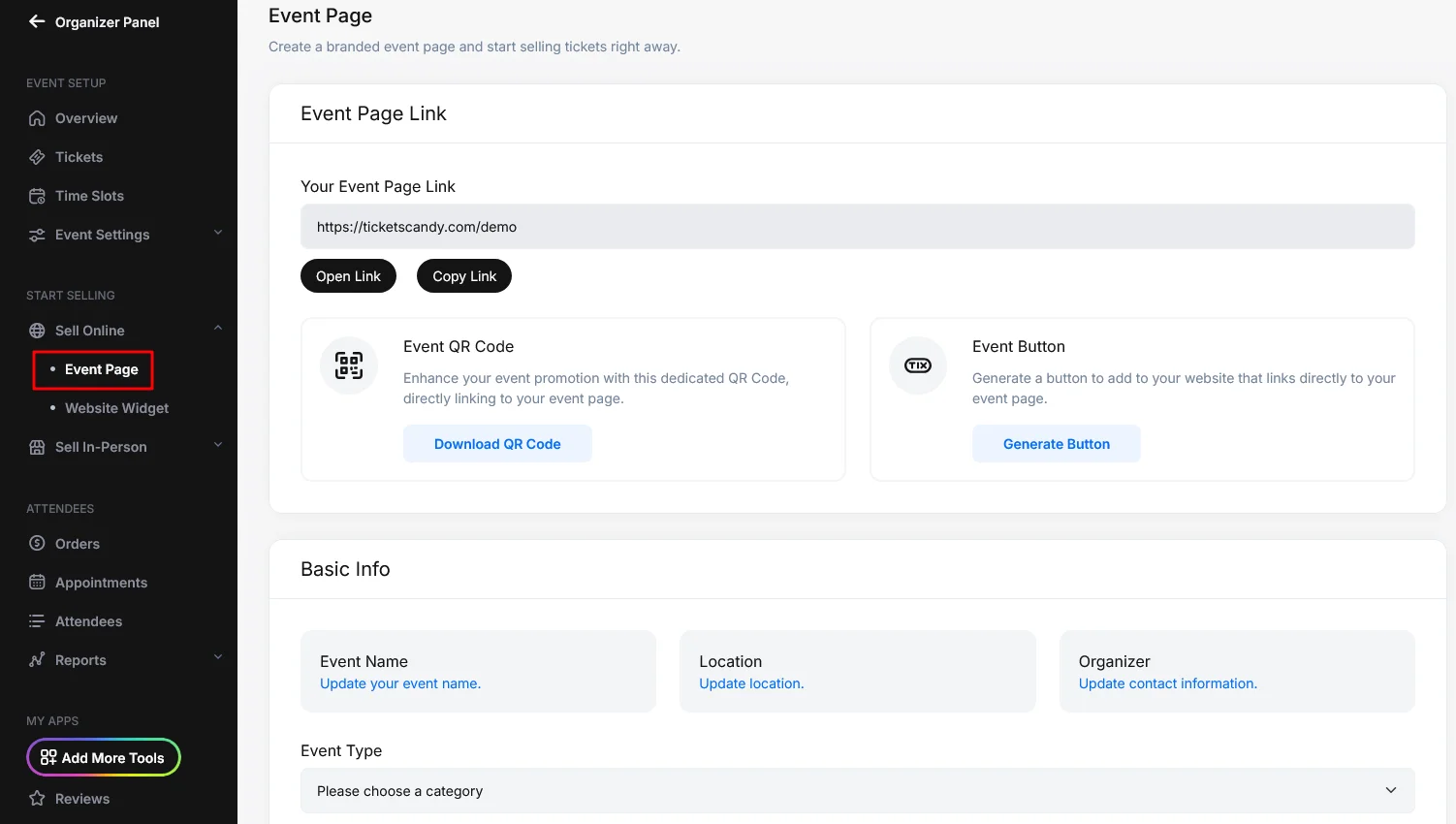
You can also preview or customize your hosted TicketsCandy event page by going to Sell Online and selecting Event Page. This is the easiest option if you want to send customers directly to a TicketsCandy-hosted page instead of embedding the widget on your own website. From this section, you can add event details, images, videos, social media links, and other information. You can also preview how your ticketing widget and checkout process will look to customers.
If your goal is to sell tickets directly from your own website, you’ll use the website widget instead, which we’ll cover in the next step.
Attendee Management
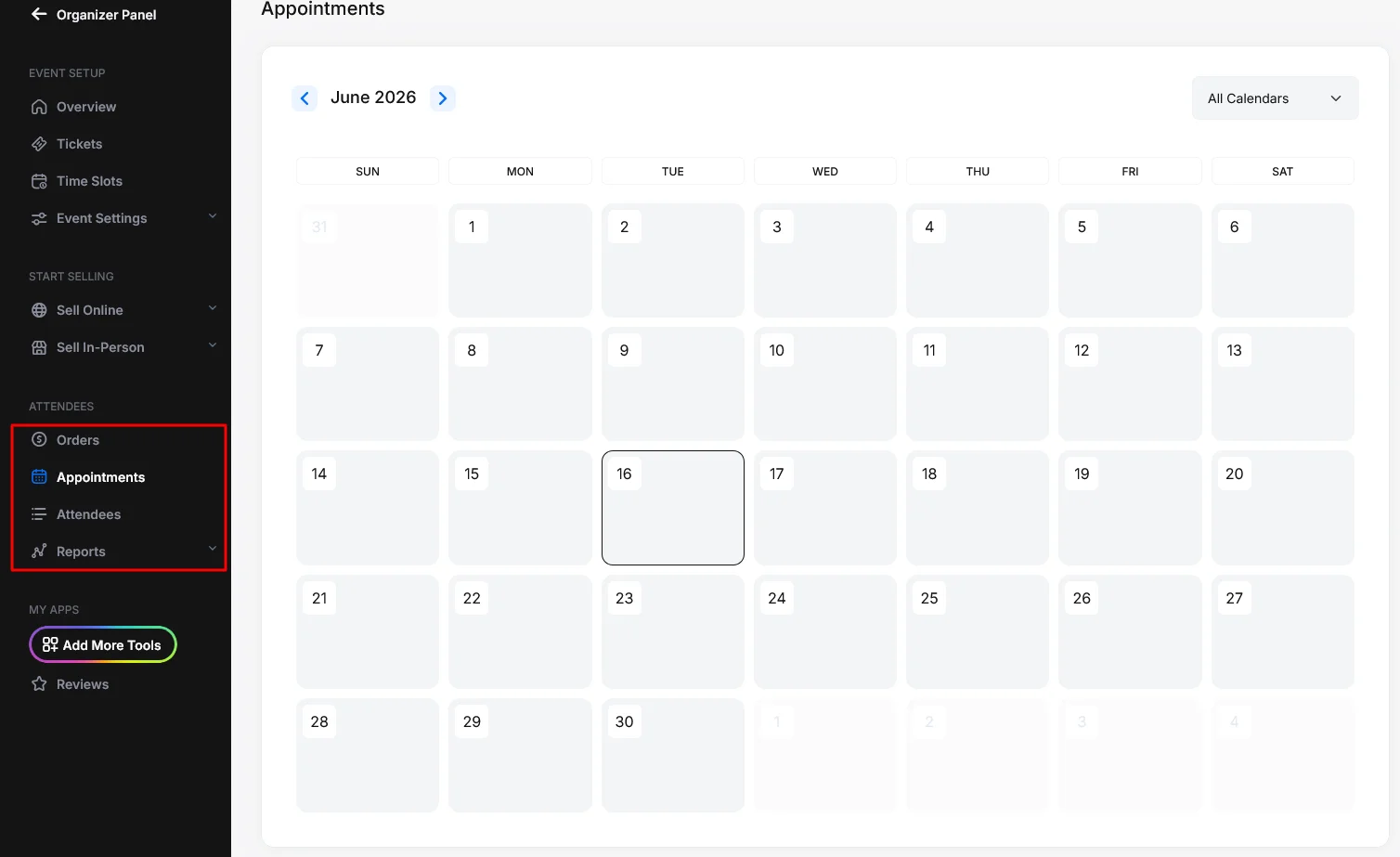
Once you start selling, you’ll be able to manage orders and attendees directly from the event dashboard. Under the Attendees section, you’ll find pages like Orders, Appointments, and Attendees.
The Orders page allows you to view incoming orders, customer information, purchased items, and payment details. From there, you can manage different order actions, such as resending tickets, canceling tickets, changing appointment details, or checking in customers.
The Appointments page gives you a calendar-style view of bookings if your event uses time slots. This makes it easy to see which dates and times have active reservations.
The Attendees page shows each attendee separately, along with their ticket details, booking date, and check-in status. From there, you can manage attendees individually, including canceling tickets or checking guests in.
You’ll also have access to event Reports, where you can review ticket sales, order totals, sold items, and other important event activity.
Step 4 :: Embed the TicketsCandy Widget on Your Website
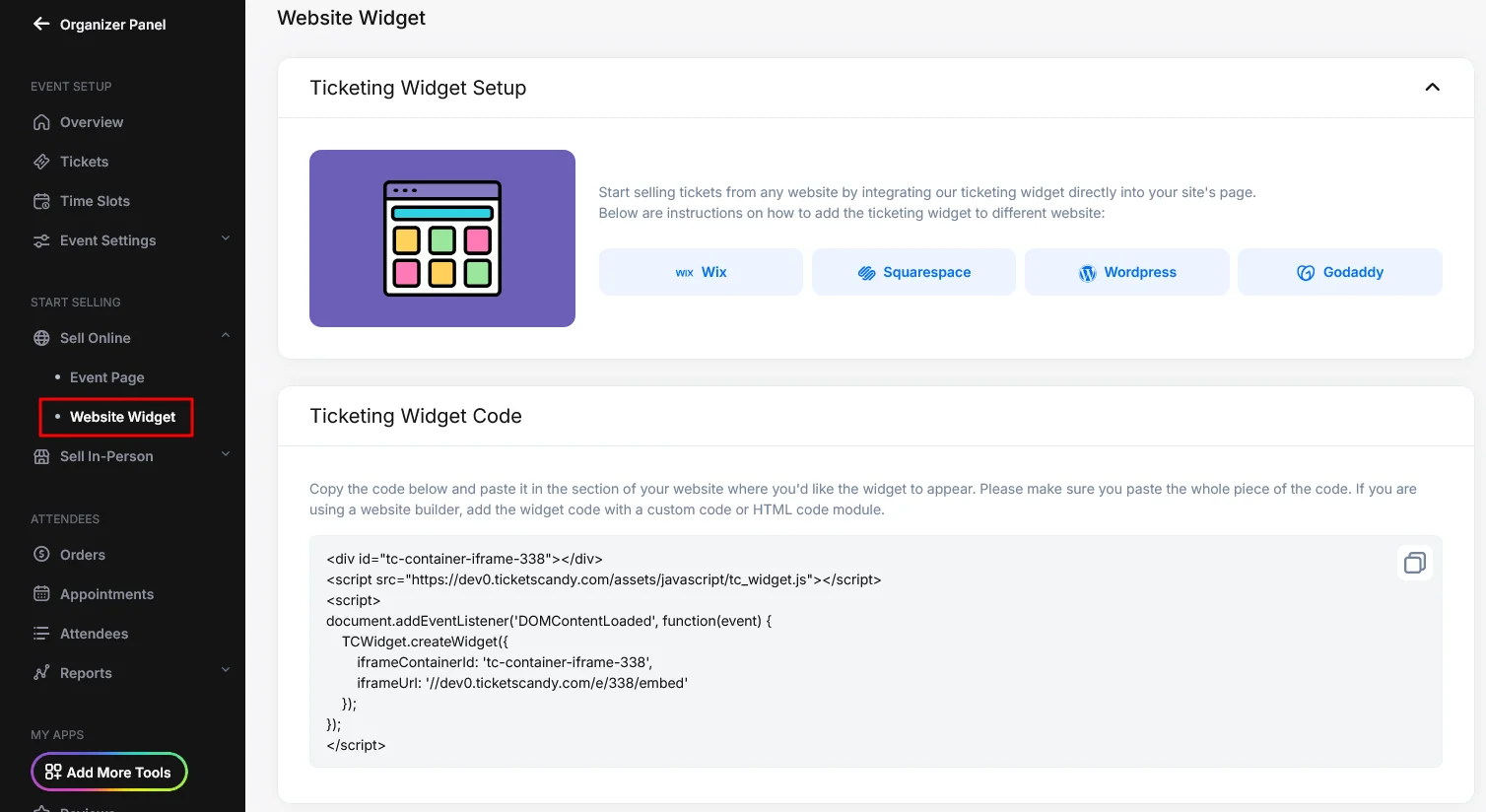
Now it’s time to connect the event page on your website with the ticketing widget you just set up in TicketsCandy. This is done through the TicketsCandy website widget, which allows customers to purchase tickets directly from your site while TicketsCandy handles the checkout, payments, ticket delivery, and order management behind the scenes.
To access the widget, go to Sell Online > Website Widget in your event dashboard.
From this page, you’ll find the embed code for your event. This is a small snippet of code that connects your website to your TicketsCandy ticketing widget.
Before copying the code, open a second browser tab and log in to the admin section of your website. This will make it easier to move between your website editor and your TicketsCandy dashboard.
Return to the TicketsCandy Website Widget page. At the top of the page, you’ll see setup links for popular website platforms, including Wix, Squarespace, WordPress, and GoDaddy. If your website is built on one of these platforms, select the matching link to see where the widget code should be placed inside your website editor.
Directly below those setup links, you’ll find the widget code. Use the Copy icon to copy the full code snippet. This helps make sure the entire code is copied correctly.
Then go back to your website editor and paste the code into the correct area of your event page. In most website builders, this will usually be an HTML block, embed block, or custom code section.
After the code is added, save or publish the page, depending on how your website builder works. Once the page is updated, the TicketsCandy widget will appear on your website and customers will be able to start purchasing tickets directly from that page.
Step 5 :: Customize Your Ticketing Widget
Trust is a key factor in improving conversion rates. One study found that 70% of people will walk away from an online purchase if the payment process feels suspicious to them.
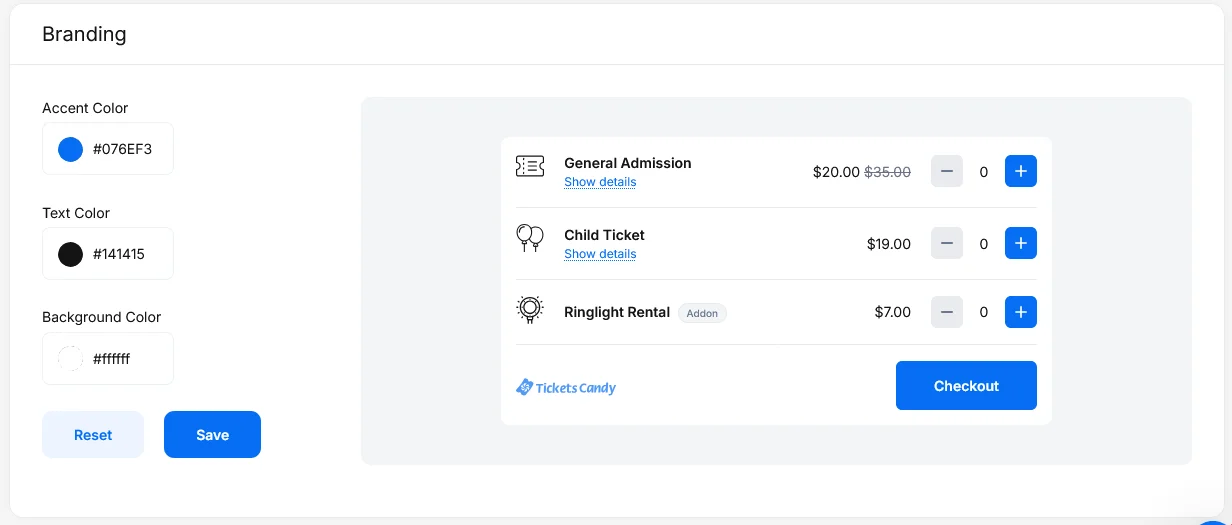
The secure TicketsCandy ticketing widget can help alleviate some of those trust concerns because it is customizable. This means that by adjusting a few sliders you can get it to match the look and feel of your site. This creates a seamless experience for potential ticket buyers which helps to improve their trust in the purchasing process.
Your customization options are on the Branding section of the Website Widget page. You can use the sliders or input the color codes for your brand to adjust all of the colors to match your organization’s guidelines.
Step 6 :: Start Selling
With your widget in place it’s time to start selling tickets! While consumers are on your site learning about your event, their interest and excitement makes them a captive audience. Having the ticketing widget embedded on the event page makes it easy to convert their interest into a purchase. Having a simple checkout process in a trusted space boosts conversions rates and lowers cart abandonment.
Sell Tickets From Your Site
Once your widget is embedded, visitors can purchase tickets directly from your website while TicketsCandy handles payments, ticket delivery, attendee management, and reporting behind the scenes.